

Overview
MySQL is the most popular Open Source Relational SQL Database Management System. MySQL is one of the best RDBMS being used for developing various web-based software applications. MySQL is developed, marketed and supported by MySQL AB, which is a Swedish company. This tutorial will give you a quick start to MySQL and make you comfortable with MySQL programming.
This basic MySQL tutorial explains some of the basic SQL statements. If this is the first time you have used a relational database management system, this tutorial gives you everything you need to know to work with MySQL such as querying data, updating data, managing databases, and creating tables.
If you are already familiar with other relational database management systems such as PostgreSQL, Oracle, and Microsoft SQL Server, you can use this tutorial to refresh your knowledge and understand how SQL dialect of MySQL is different from other systems.
SQL Server Editions
The following table describes the editions of SQL Server.
| SQL Server edition | Definition |
|---|---|
| Enterprise | The premium offering, SQL Server Enterprise edition delivers comprehensive high-end datacenter capabilities with blazing-fast performance, unlimited virtualization, and end-to-end business intelligence – enabling high service levels for mission-critical workloads and end-user access to data insights. |
| Standard | SQL Server Standard edition delivers basic data management and business intelligence database for departments and small organizations to run their applications and supports common development tools for on-premise and cloud – enabling effective database management with minimal IT resources. |
| Web | SQL Server Web edition is a low total-cost-of-ownership option for Web hosters and Web VAPs to provide scalability, affordability, and manageability capabilities for small to large-scale Web properties. |
| Developer | SQL Server Developer edition lets developers build any kind of application on top of SQL Server. It includes all the functionality of Enterprise edition, but is licensed for use as a development and test system, not as a production server. SQL Server Developer is an ideal choice for people who build SQL Server and test applications. |
| Express editions | Express edition is the entry-level, free database and is ideal for learning and building desktop and small server data-driven applications. It is the best choice for independent software vendors, developers, and hobbyists building client applications. If you need more advanced database features, SQL Server Express can be seamlessly upgraded to other higher end versions of SQL Server. SQL Server Express LocalDB, a lightweight version of Express that has all of its programmability features, yet runs in user mode, and has a fast, zero-configuration installation and a short list of prerequisites. |
Section 1. Getting started with MySQL
This section helps you get started with MySQL. We will start installing MySQL, downloading a sample database, and loading data into the MySQL server for practicing.
- Installing MySQL database server – show you step by step how to install MySQL database server on your computer.
- Downloading MySQL sample database – introduce you to a MySQL sample database named
classicmodels. We also provide you links for downloading the sample database and its diagrams. - Loading the sample database into your own MySQL database server – walk you through steps of how to load the
classicmodelssample database into your MySQL database server for practicing.
Section 2. Querying data
This section helps you learn how to query data from the MySQL database server. We will start with a simple SELECT statement that allows you to query data from a single table.
- SELECT – show you how to use simple
SELECTstatement to query the data from a single table.
Section 3. Sorting data
- ORDER BY – show you how to sort the result set using
ORDER BYclause. The custom sort order with theFIELDfunction will be also covered.
Section 4. Filtering data
- WHERE – learn how to use the
WHEREclause to filter rows based on specified conditions. - SELECT DISTINCT – show you how to use the
DISTINCToperator in theSELECTstatement to eliminate duplicate rows in a result set. - AND – introduce you to the
ANDoperator to combine Boolean expressions to form a complex condition for filtering data. - OR– introduce you to the
ORoperator and show you how to combine theORoperator with theANDoperator to filter data. - IN – show you how to use the
INoperator in theWHEREclause to determine if a value matches any value in a list or a subquery. - BETWEEN – show you how to query data based on a range using
BETWEENoperator. - LIKE – provide you with technique to query data based on a specific pattern.
- LIMIT – use
LIMITto constrain the number of rows returned bySELECTstatement - IS NULL – test whether a value is
NULLor not by usingIS NULLoperator.
What is a Database?
A database is a separate application that stores a collection of data. Each database has one or more distinct APIs for creating, accessing, managing, searching and replicating the data it holds.
Other kinds of data stores can also be used, such as files on the file system or large hash tables in memory but data fetching and writing would not be so fast and easy with those type of systems.
Nowadays, we use relational database management systems (RDBMS) to store and manage huge volume of data. This is called relational database because all the data is stored into different tables and relations are established using primary keys or other keys known as Foreign Keys.
A Relational DataBase Management System (RDBMS) is a software that −
- Enables you to implement a database with tables, columns and indexes.
- Guarantees the Referential Integrity between rows of various tables.
- Updates the indexes automatically.
- Interprets an SQL query and combines information from various tables.
RDBMS Terminology
Before we proceed to explain the MySQL database system, let us revise a few definitions related to the database.
- Database − A database is a collection of tables, with related data.
- Table − A table is a matrix with data. A table in a database looks like a simple spreadsheet.
- Column − One column (data element) contains data of one and the same kind, for example the column postcode.
- Row − A row (= tuple, entry or record) is a group of related data, for example the data of one subscription.
- Redundancy − Storing data twice, redundantly to make the system faster.
- Primary Key − A primary key is unique. A key value can not occur twice in one table. With a key, you can only find one row.
- Foreign Key − A foreign key is the linking pin between two tables.
- Compound Key − A compound key (composite key) is a key that consists of multiple columns, because one column is not sufficiently unique.
- Index − An index in a database resembles an index at the back of a book.
- Referential Integrity − Referential Integrity makes sure that a foreign key value always points to an existing row.
MySQL Database
MySQL is a fast, easy-to-use RDBMS being used for many small and big businesses. MySQL is developed, marketed and supported by MySQL AB, which is a Swedish company. MySQL is becoming so popular because of many good reasons −
- MySQL is released under an open-source license. So you have nothing to pay to use it.
- MySQL is a very powerful program in its own right. It handles a large subset of the functionality of the most expensive and powerful database packages.
- MySQL uses a standard form of the well-known SQL data language.
- MySQL works on many operating systems and with many languages including PHP, PERL, C, C++, JAVA, etc.
- MySQL works very quickly and works well even with large data sets.
- MySQL is very friendly to PHP, the most appreciated language for web development.
- MySQL supports large databases, up to 50 million rows or more in a table. The default file size limit for a table is 4GB, but you can increase this (if your operating system can handle it) to a theoretical limit of 8 million terabytes (TB).
- MySQL is customizable. The open-source GPL license allows programmers to modify the MySQL software to fit their own specific environments.
PHP on MySQL
The PDO is a data-access abstraction layer. It is a PHP extension that provides a lightweight and consistent interface for interacting with any databases including MySQL.

Connecting to MySQL Database – this tutorial shows you how to connect to MySQL database server using PHP PDO object.
Creating A New Table – this tutorial shows you step by step how to create a table by using PHP PDO object.
Querying Data from Database – you will learn how to query data from MySQL database by using PHP PDO and use PDO prepared statement to select data securely.
Inserting Data Into a Table – this tutorial shows you how to use PHP to insert data into MySQL a table.
Updating Data – this tutorial shows you how to update data in a MySQL table using PHP PDO prepared statement.
Deleting Data – in this tutorial, you are going to learn how to delete data from the MySQL database table using PHP PDO.
Calling MySQL Stored Procedures – this tutorial shows you how to call MySQL stored procedures using PHP PDO. It guides you on how to call stored procedures that return result sets and stored procedures that accept input/output parameters.
Dealing with transactions – in this tutorial, we will show you how to handle MySQL transactions in PHP to ensure data integrity of databases. In addition, we will give you an example of the money transfer transaction between two bank accounts for the demonstration.
Manipulating BLOB – in this tutorial, you will learn how to handle BLOB data using PDO. We will show you how to insert, update and select BLOB data from the MySQL database.
MySQL works very well in combination of various programming languages like PERL, C, C++, JAVA and PHP. Out of these languages, PHP is the most popular one because of its web application development capabilities.
This tutorial focuses heavily on using MySQL in a PHP environment. If you are interested in MySQL with PERL, then you can consider reading the PERL Tutorial.
PHP provides various functions to access the MySQL database and to manipulate the data records inside the MySQL database. You would require to call the PHP functions in the same way you call any other PHP function.
The PHP functions for use with MySQL have the following general format −
mysql_function(value,value,...);
The second part of the function name is specific to the function, usually a word that describes what the function does. The following are two of the functions, which we will use in our tutorial −
mysqli_connect($connect);
mysqli_query($connect,"SQL statement");
The following example shows a generic syntax of PHP to call any MySQL function.
<html>
   <head>
      <title>PHP with MySQL</title>
   </head>

   <body>
      <?php
         $retval = mysql_function(value, [value,...]);
         if( !$retval ) {
            die ( "Error: a related error message" );
         }
         // Otherwise MySQL  or PHP Statements
      ?>
   </body>
</html>
Starting from the next chapter, we will see all the important MySQL functionality along with PHP.
Running and Shutting down MySQL Server
First check if your MySQL server is running or not. You can use the following command to check it −
ps -ef | grep mysqld
If your MySql is running, then you will see mysqld process listed out in your result. If server is not running, then you can start it by using the following command −
root@host# cd /usr/bin
./safe_mysqld &
Now, if you want to shut down an already running MySQL server, then you can do it by using the following command −
root@host# cd /usr/bin
./mysqladmin -u root -p shutdown
Enter password: ******
Setting Up a MySQL User Account
For adding a new user to MySQL, you just need to add a new entry to the user table in the database mysql.
The following program is an example of adding a new user guest with SELECT, INSERT and UPDATE privileges with the password guest123; the SQL query is −
root@host# mysql -u root -p
Enter password:*******
mysql> use mysql;
Database changed

mysql> INSERT INTO user
   (host, user, password,
   select_priv, insert_priv, update_priv)
   VALUES ('localhost', 'guest',
   PASSWORD('guest123'), 'Y', 'Y', 'Y');
Query OK, 1 row affected (0.20 sec)

mysql> FLUSH PRIVILEGES;
Query OK, 1 row affected (0.01 sec)

mysql> SELECT host, user, password FROM user WHERE user = 'guest';
+-----------+---------+------------------+
|    host   |   user  |     password     |
+-----------+---------+------------------+
| localhost |  guest  | 6f8c114b58f2ce9e |
+-----------+---------+------------------+
1 row in set (0.00 sec)
When adding a new user, remember to encrypt the new password using PASSWORD() function provided by MySQL. As you can see in the above example, the password mypass is encrypted to 6f8c114b58f2ce9e.
Notice the FLUSH PRIVILEGES statement. This tells the server to reload the grant tables. If you don’t use it, then you won’t be able to connect to MySQL using the new user account at least until the server is rebooted.
You can also specify other privileges to a new user by setting the values of following columns in user table to ‘Y’ when executing the INSERT query or you can update them later using UPDATE query.
- Select_priv
- Insert_priv
- Update_priv
- Delete_priv
- Create_priv
- Drop_priv
- Reload_priv
- Shutdown_priv
- Process_priv
- File_priv
- Grant_priv
- References_priv
- Index_priv
- Alter_priv
Another way of adding user account is by using GRANT SQL command. The following example will add user zara with password zara123 for a particular database, which is named as TUTORIALS.
root@host# mysql -u root -p password;
Enter password:*******
mysql> use mysql;
Database changed

mysql> GRANT SELECT,INSERT,UPDATE,DELETE,CREATE,DROP
   -> ON TUTORIALS.*
   -> TO 'zara'@'localhost'
   -> IDENTIFIED BY 'zara123';
This will also create an entry in the MySQL database table called as user.
NOTE − MySQL does not terminate a command until you give a semi colon (;) at the end of the SQL command.
The /etc/my.cnf File Configuration
In most of the cases, you should not touch this file. By default, it will have the following entries −
[mysqld]
datadir = /var/lib/mysql
socket = /var/lib/mysql/mysql.sock

[mysql.server]
user = mysql
basedir = /var/lib

[safe_mysqld]
err-log = /var/log/mysqld.log
pid-file = /var/run/mysqld/mysqld.pid
Step by Step Guide To Install SQL Server 2016, SSMS And SSDT Tool
Sign in with a valid Hotmail account or else create a new Microsoft account here.
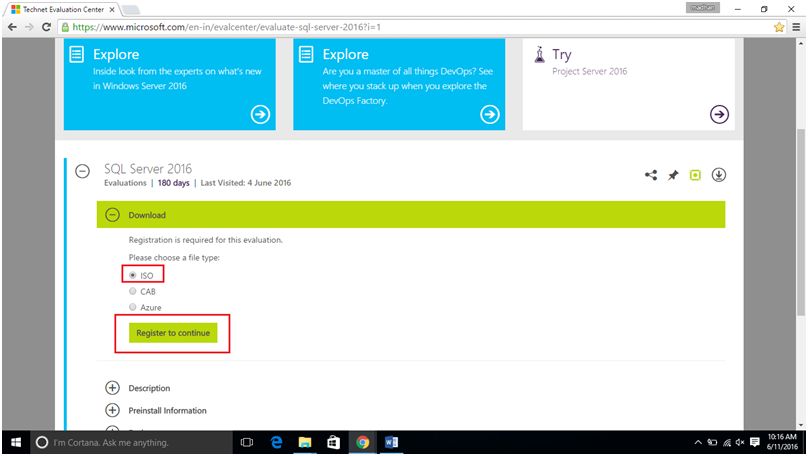
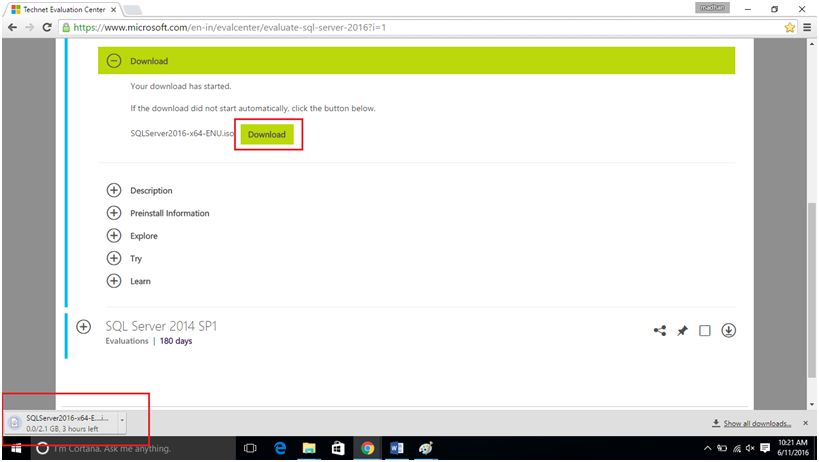
Fill in the required information, click Register to continue. Your download will start automatically and if it does not start click the download button to download SQL Server ISO File.
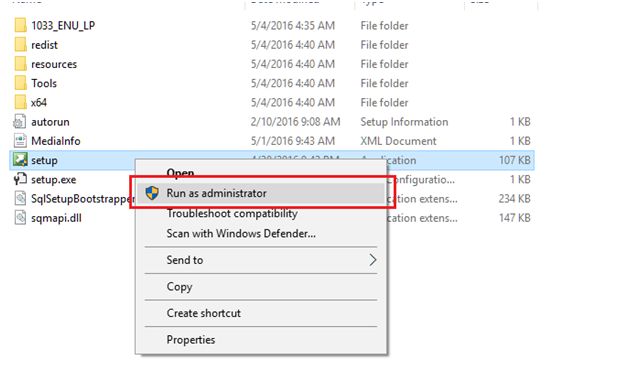
Once the download is completed, run the setup file (run as administrator).
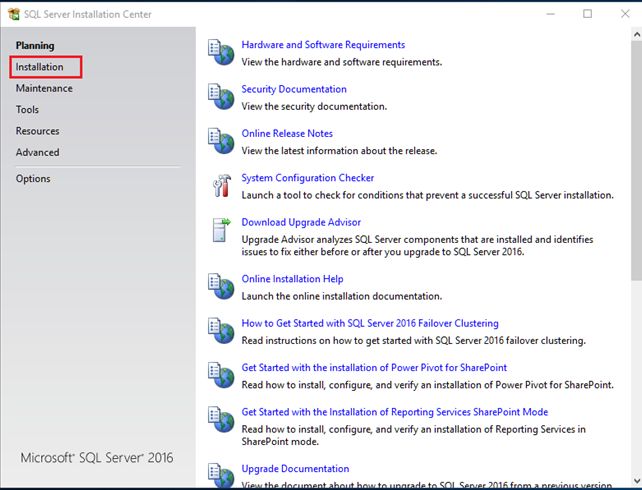
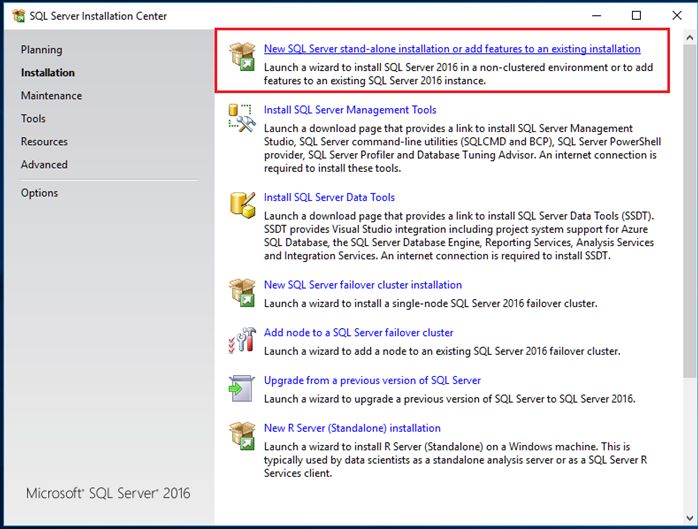
After a few seconds the screenshot shown below will appear, check the hardware and software requirements and click the installation tab.
Click new stand-alone SQL Server installation or add the feature to an existing installation.
If you have a Product ID enter it or select the free edition.
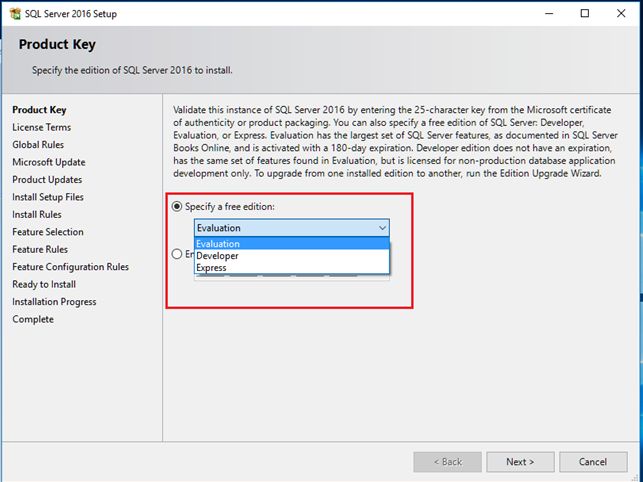
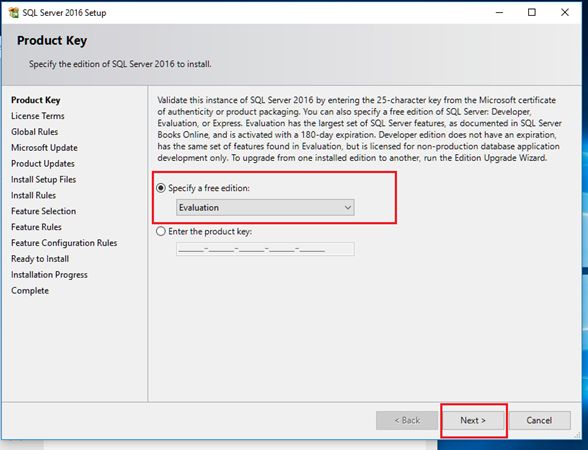
Pick any one drop down now. I selected evaluation and clicked next.
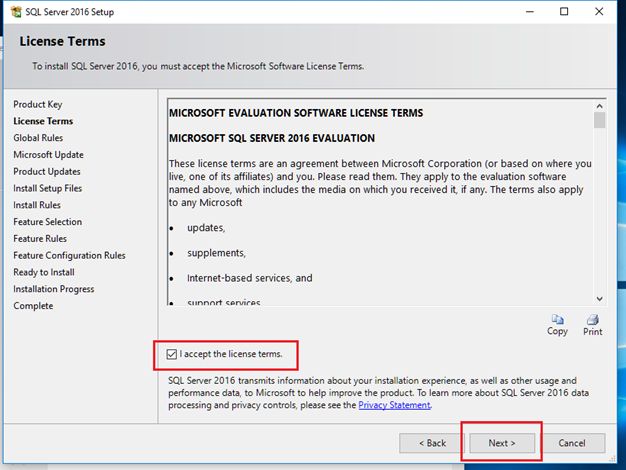
Accept the license and click next.
Click next.
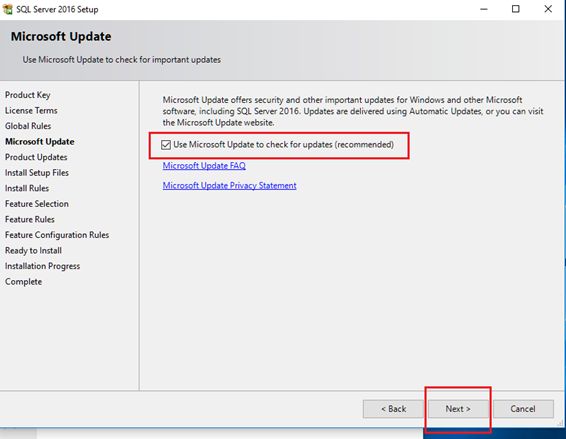
Check Microsoft update and click next.
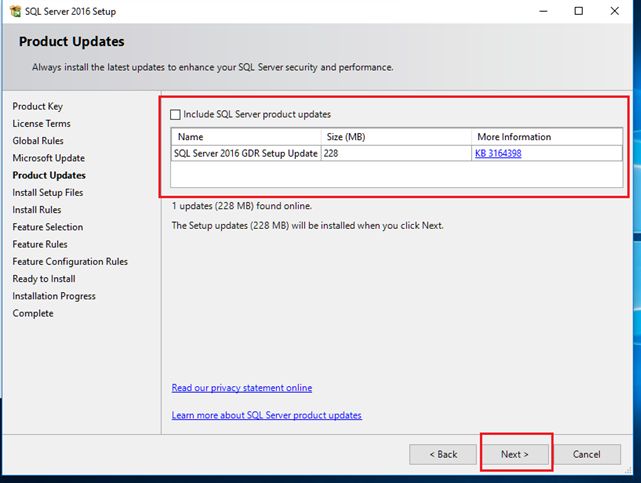
Now I am installing SQL Server offline. I have not used the internet connection and therefore, I unchecked the latest update.
Click next.
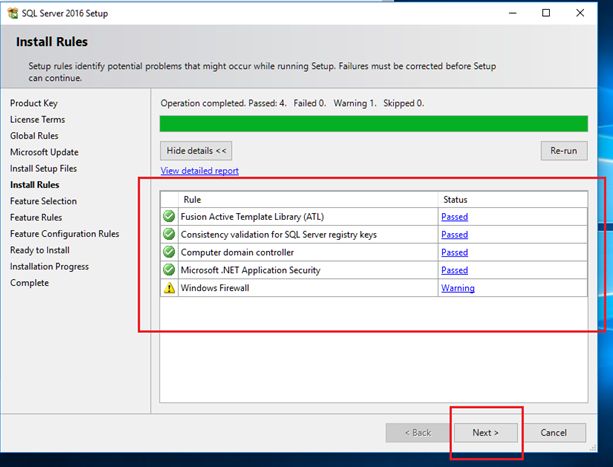
Check all the rules which are passed. Firewall gives a warning, which is not a problem, and you are good to go. Click here to learn how to configure Windows Firewall for SQL Server access. Click next.
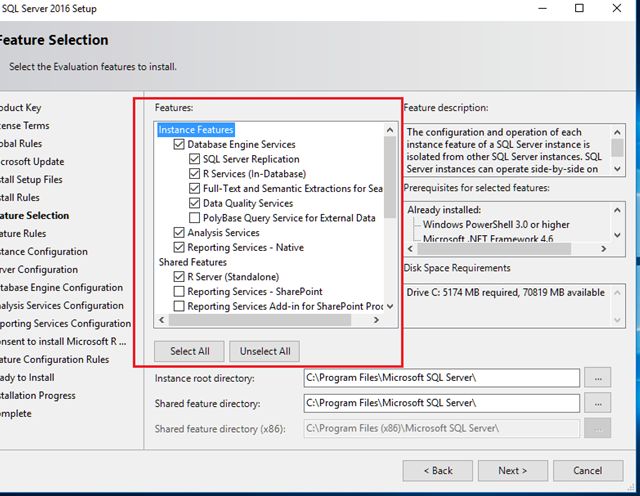
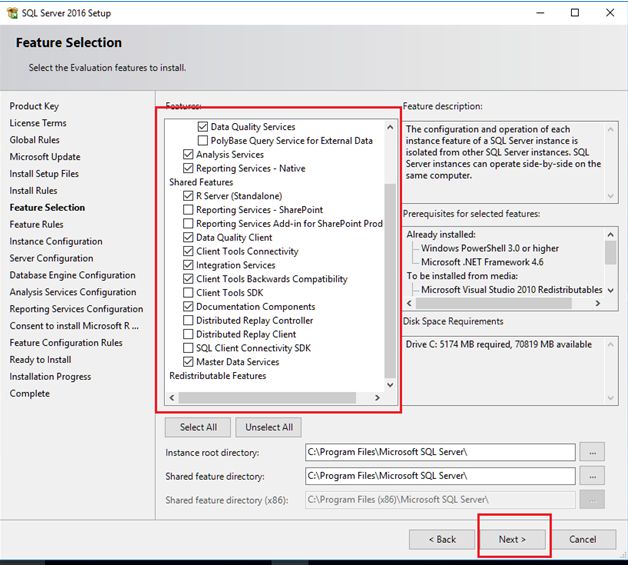
Select the required features and click next.
Part (1/2)
Part(2/2)
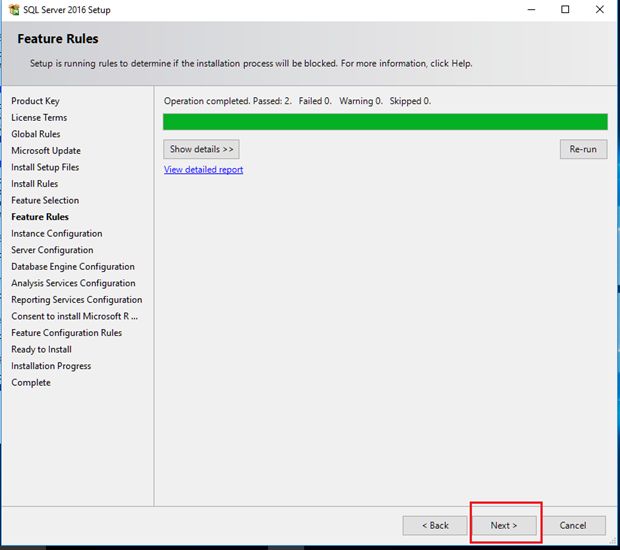
Click next to continue the installation.
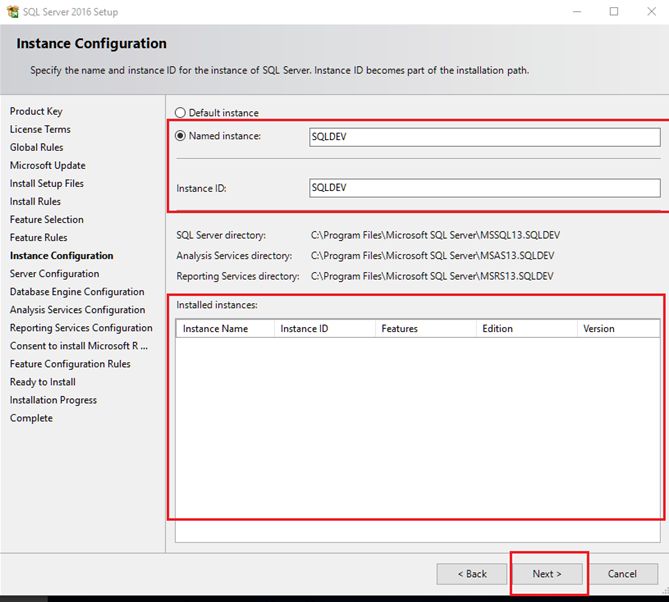
I am installing SQL Server on my machine first, so there will be no instance. Create a named instance, shown below, and click next.
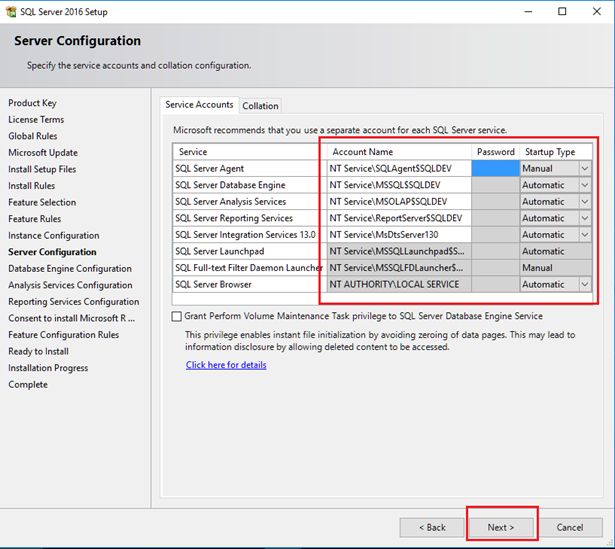
If you want a separate account to maintain SQL Server Service, you can create a new user profile and assign the password. Now I don’t need this, so I set the default one and click next.
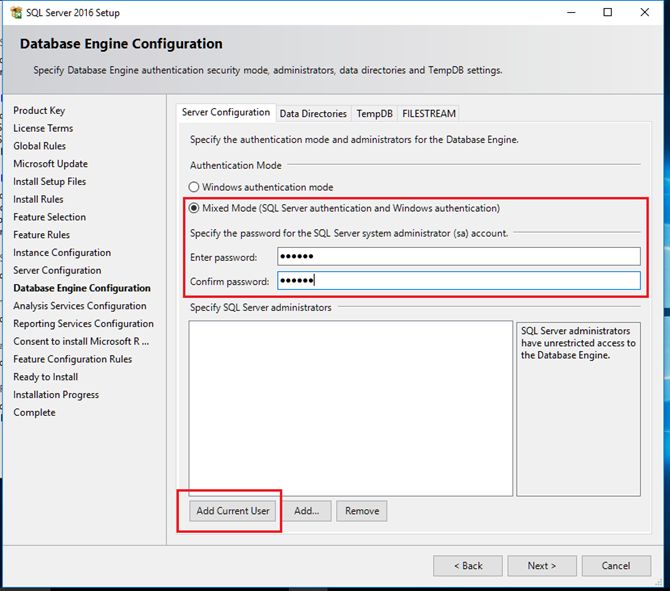
Select the mixed SQL Server Authentication to provide the password for SQL Server authentication. Click the ADD current user button to add the current user as an administrator.
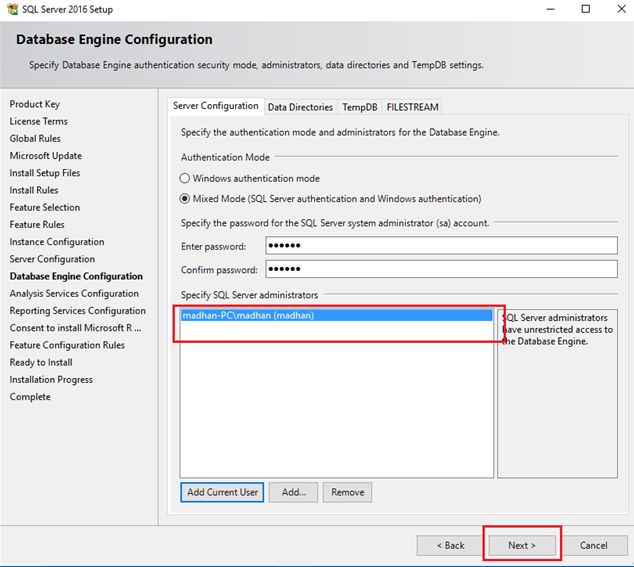
Once user is added click next.
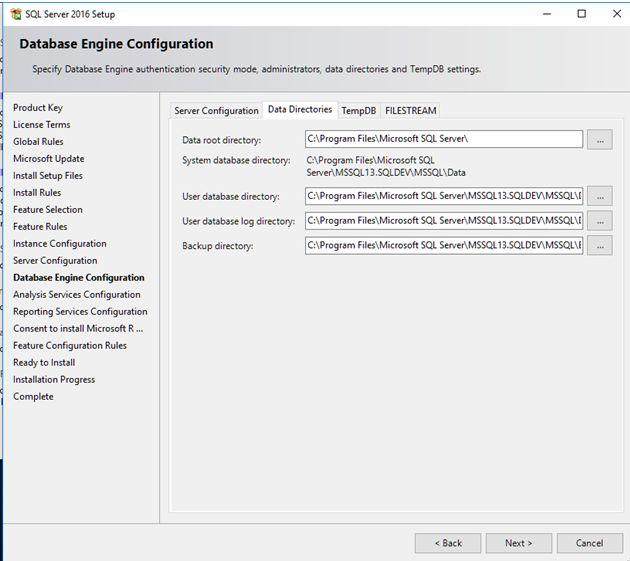
If you want, you can change the data directories path.
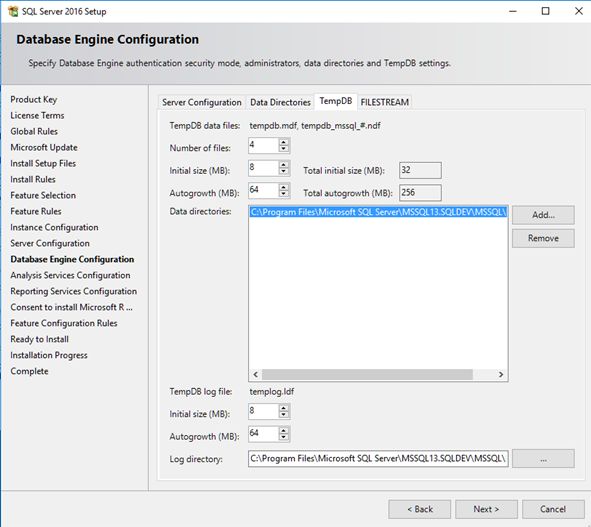
Check the Temp DB Size. If you want, you can change the temp DB size and the path.
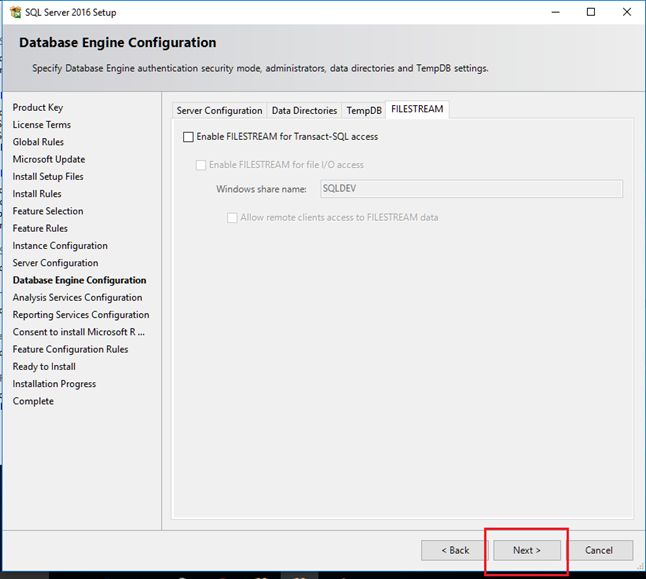
Enable the File stream. If required for more information about enabling and configuring File Stream, please click here. Click next.
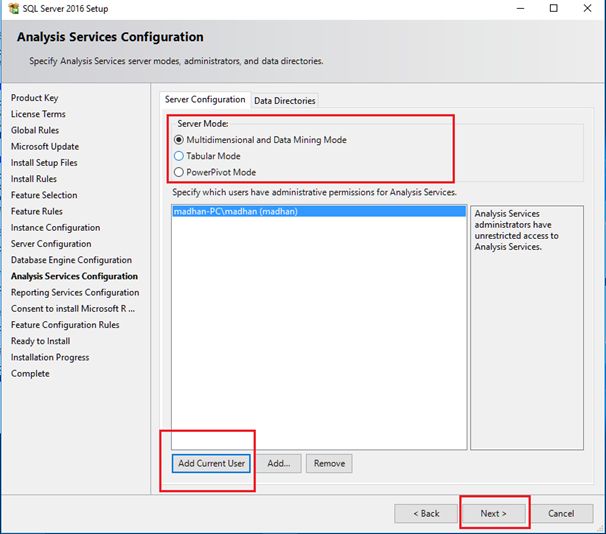
Select SSAS Server Mode and add current user for SSAS administrator and click next.
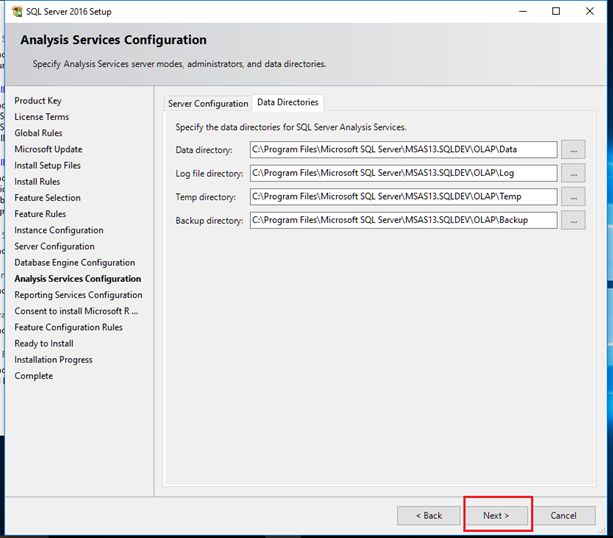
Check the Analysis Service installation path. If you want, you can change the installation path and click next.
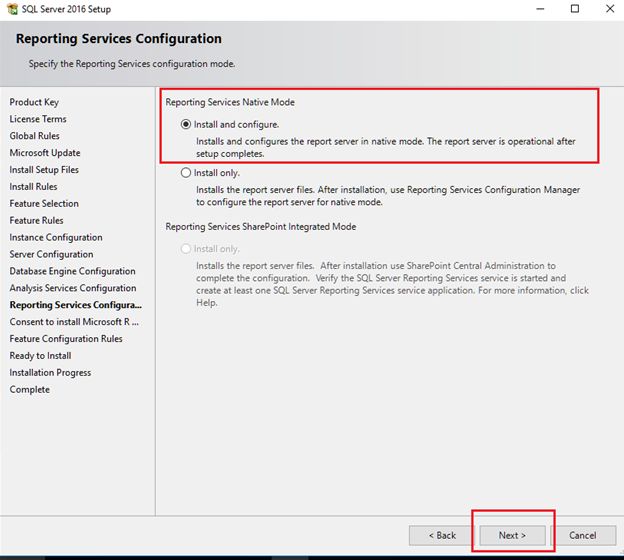
Select Install and Configure for SQL Server Native Mode.
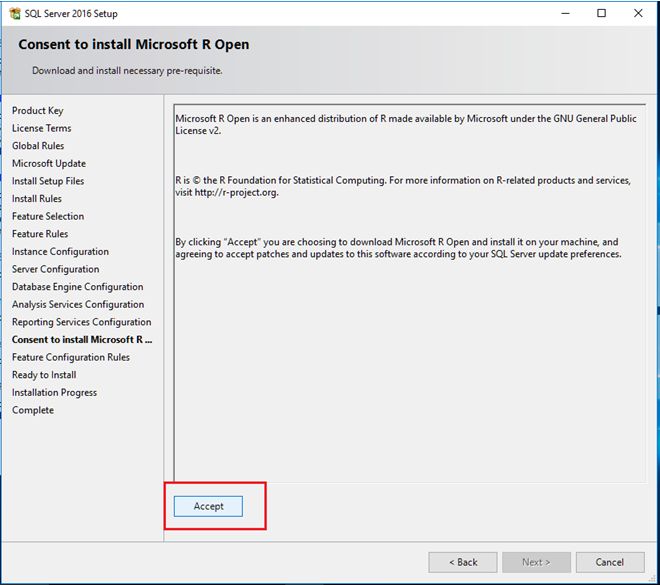
Click Accept to install on your machine.
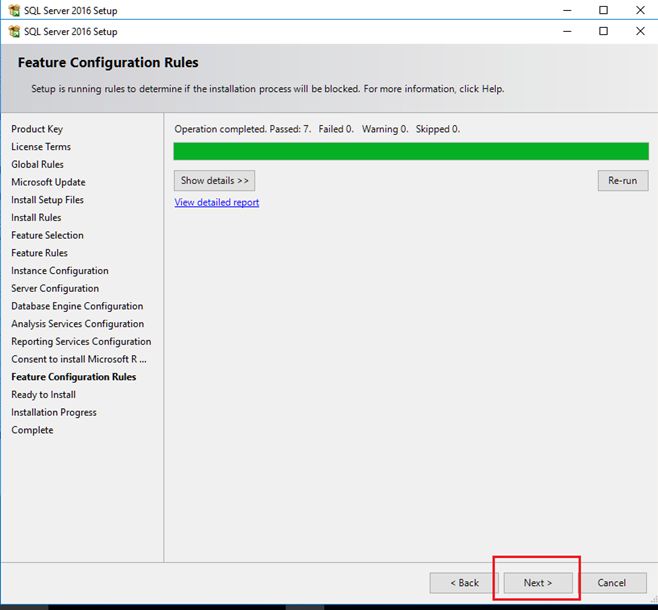
Click next to continue installation.
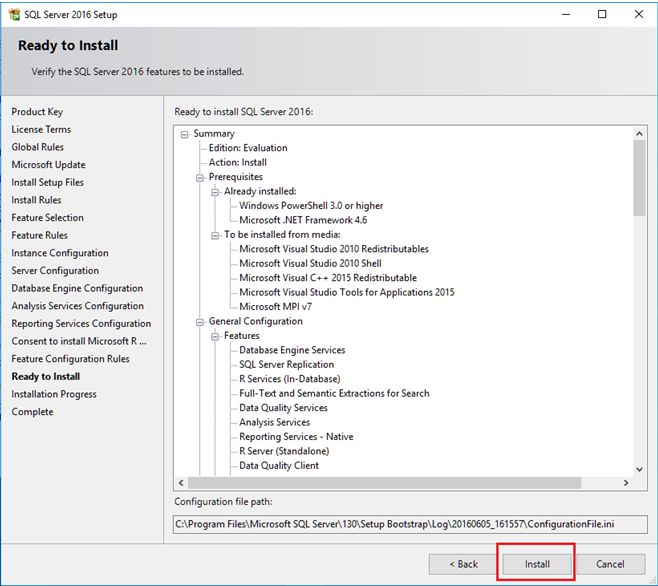
Check the features you are going to install and click install button.
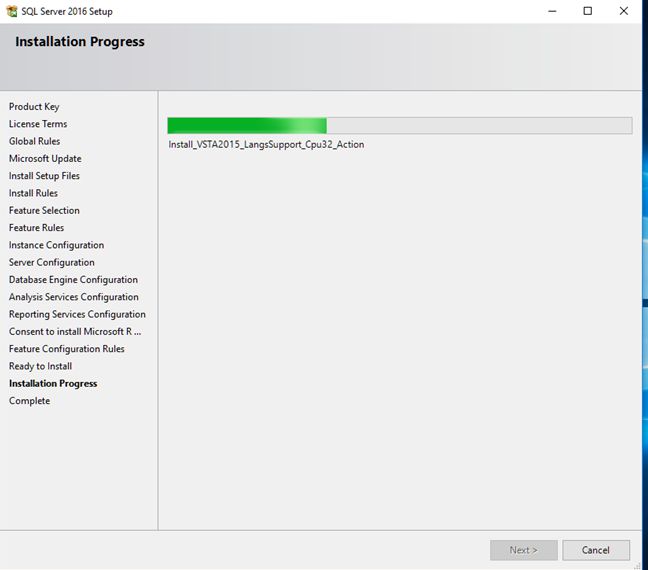
It will take some time for the installation and click next, once installation completes.
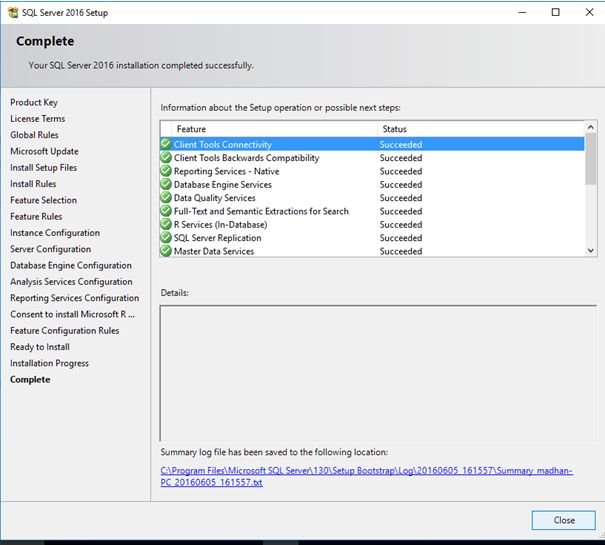
All the features are installed successfully.

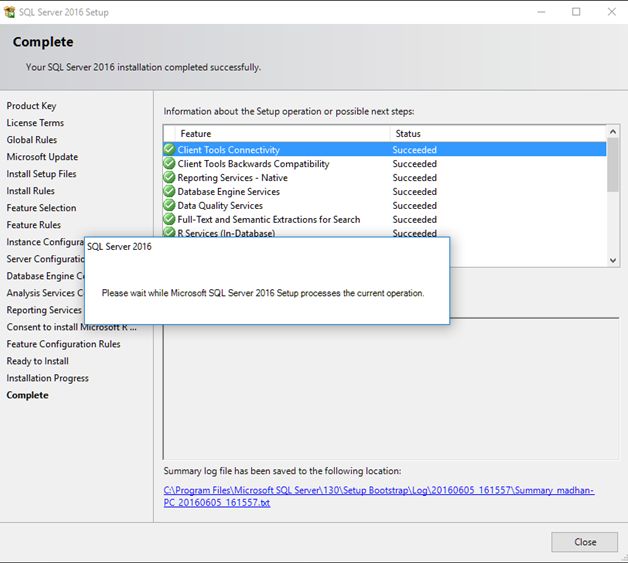
Click close to complete the installation.
Now, I am going to check what are the features installed on the start Menu?
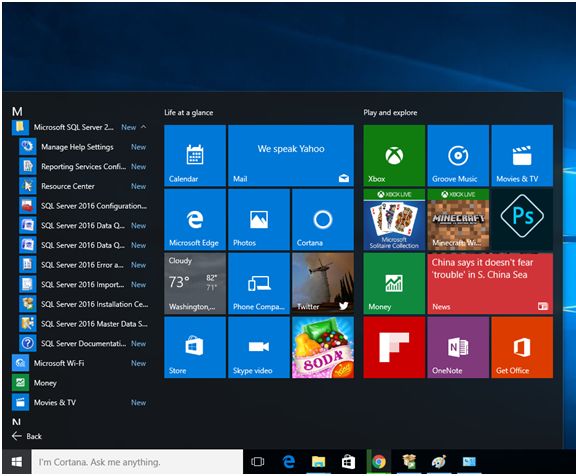
Oops, I can’t find SQL Server Management Studio and Visual Studio.
Don’t panic, as we have to download SQL Server Management Studio and SSDT 2015 (SSIS, SSRS and SSAS) followed by installing it separately.
Go to SQL Server Setup and run it, followed by Click Installation -> Install SQL Server Management.
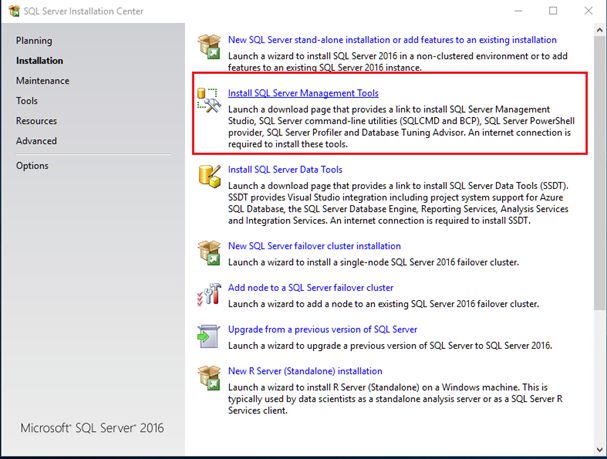 It will take you to the Web Browser and download SSMS, as shown below:
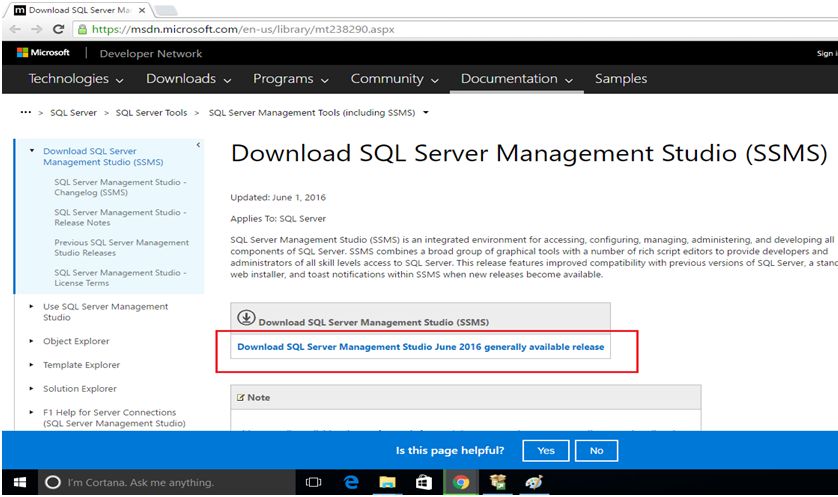
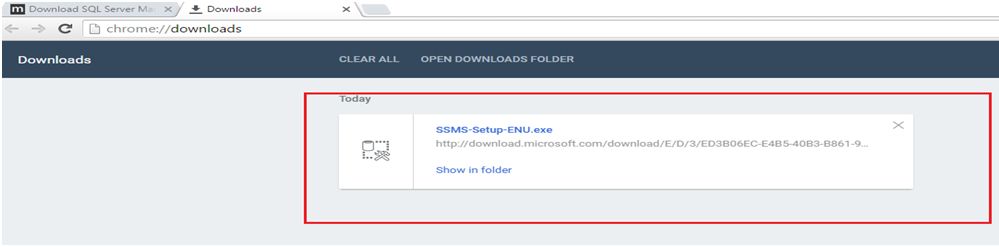
Once the download completes, run the setup.
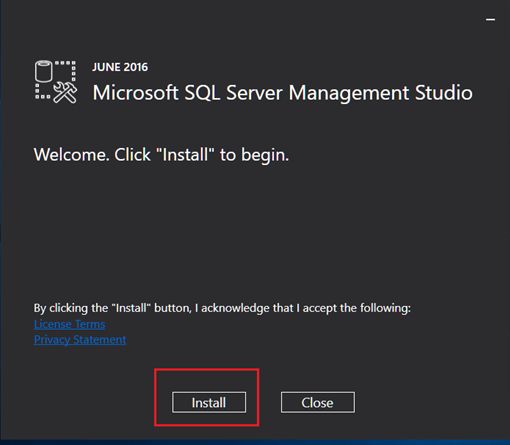
Click install.
Installation will take some time. Click close, once installation completes.
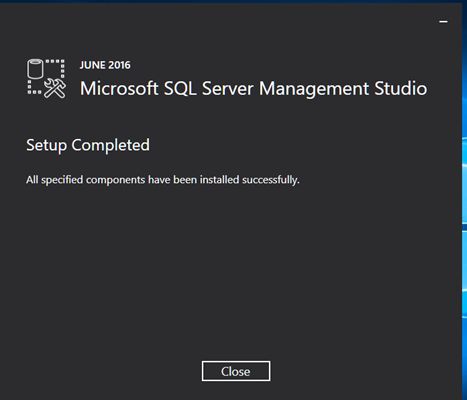
SSMS installed successfully.
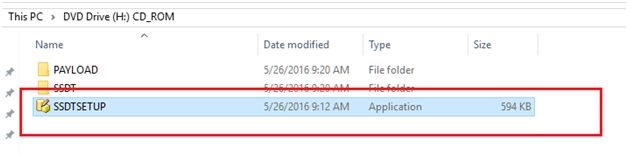
Like SSMS, download SSDT from the internet. Once download completes, run the setup.
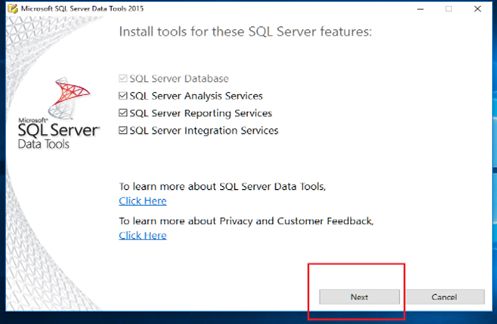
Select SSIS, SSRS and SSAS and click next.
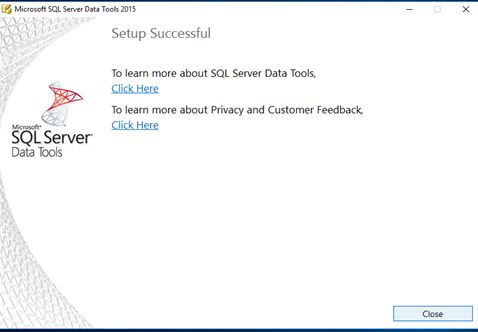
Click Close to complete the installation.
Features
Major Features of My SQL Server
1. Always Encrypted
The Always Encrypted feature protects data and enables the SQL Server to perform encrypted data operations so that the owners can protect their confidential data by using an encryption key. This feature ensures that your important data stored in the cloud managed database remains encrypted and protected.
2. Dynamic Data Masking
This feature gives an obscured version of your confidential data to some people and allows only authorized users to view it by defining masking rules. It is popularly used for managing credit card information and similar databases.
3. Stretch Database
The Stretch Database permits you to extend your database to Azure where the data that is not accessed regularly are moved to the cloud so that you can enjoy high-performance applications while benefiting from the low-cost Azure store as only the frequently accessed data stays on premise.
4. Real-time Operational Analytics
The real-time Operational Analytics of SQL 2016 prepare your system for optimal transactional performance and helps to increase workload consistency by combining in-memory OLTP with in-memory columnstore.
5. Polybase
This feature works as a connector between SQL Server and Hadoop so that your regular data processing involving large text files can be stored conveniently in Azure Blob Storage or Hadoop. This technology bridges the gap between SQL Server and Hadoop to make data storage easy.
6. Query Store
The Query Store feature of SQL 2016 version deals with the problem faced by previous servers in tracing the history of your execution plans as they only showed plans that are active in the plan cache. However, the inclusion of this feature in SQL Server 2016 allows you to track previous execution plans and performance by tracing your queries over a long period of time.
7. Row Level Security
The Row Level Security feature is a major development in this database management system as it restricts some users to view data in tables by using an SQL Server login. It allows you to implement row level security so that new users will not be able to detect whether the rows of data were filtered for restricting data.
8. Enhancements to AlwaysOn
The SQL 2016 version improves the ability of the AlwaysOn feature to have around three synchronous replicas in order to support availability and disaster recovery functions. It also relies on Distributed Transaction Coordinator support for load balancing and manages automatic failover.
9. Revamped SQL Server Data Tools
The Revamped SQL Server Data Tools re-consolidate the data tools that had to be downloaded separately in the earlier versions as SQL Server 2016 presents a compact package to assist easy working on this database management system.
10. JSON Support
The Java Script Object Notation feature allows you to interchange JSON data between the SQL Server database engine and various other applications. The SQL 2016 can analyze JSON formatted data and even convert relational data into JSON format for convenient storage.
The expertise to develop a data warehouse by using these advanced features of Microsoft’s SQL Server 2016 can be developed by getting proper mentoring and guidance while pursuing the “Implementing a Microsoft SQL 2016 Data Warehouse” course. This 5-day course will help you move ahead of your contemporaries by acquiring the necessary skills for excelling as a Business Intelligence Developer so that you can climb the ladder of success by improving your skill set.
