
Overview
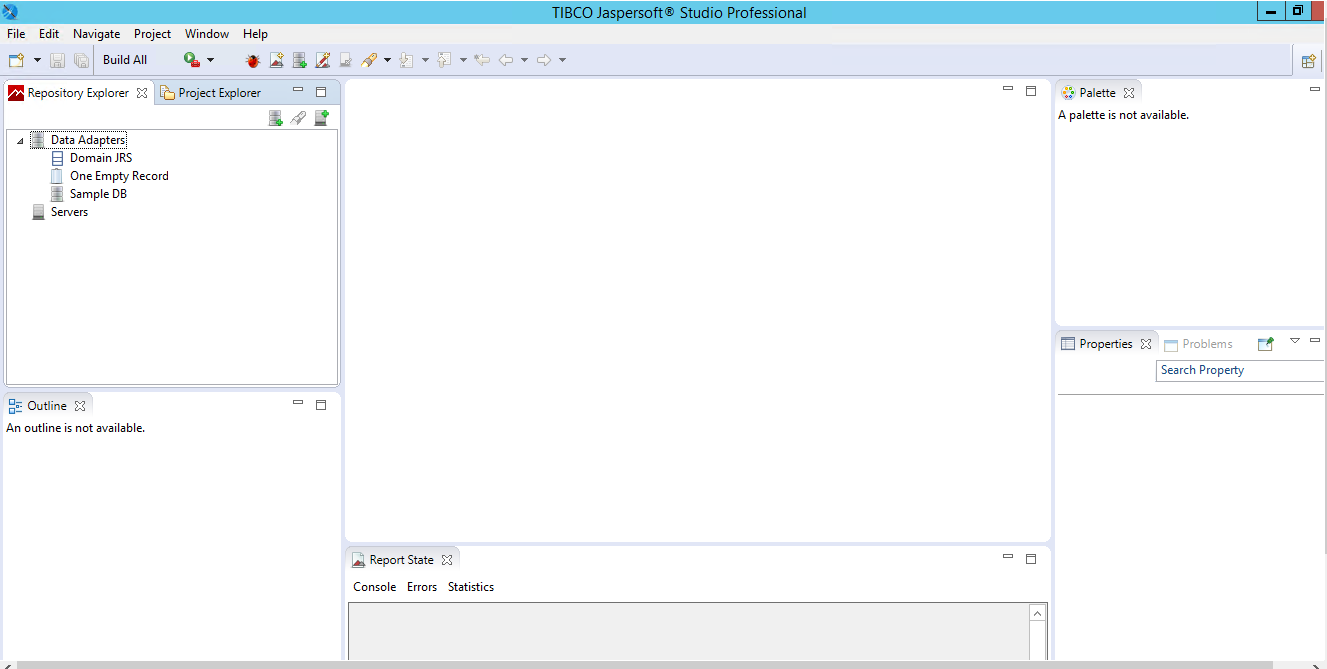
Jaspersoft Studio is the new Eclipse-based report designer for JasperReports and JasperReports Server. It is a full rewrite of iReport Designer, available as Eclipse plugin, and as a standalone application. Jaspersoft Studio allows you to create sophisticated layouts containing charts, images, subreports, crosstabs and much more. You can access your data through JDBC, TableModels, JavaBeans, XML, Hibernate, CSV, and custom sources, then publish your reports as PDF, RTF, XML, XLS, CSV, HTML, XHTML, text, DOCX, or OpenOffice.
Jaspersoft Studio’s primary goal is to provide the features in the well-known Jaspersoft Report Editor, available as a port of iReport Designer. This is only the beginning – having its foundations on the Eclipse platform, Jaspersoft Studio will be a more complete solution allowing users to extend its capabilities and functionality.
Features
Major Features of Jaspersoft Studio Professional
- A new powerful expression editor with the ability of using built-in functions and create new ones
- Style inheritance view
- Contextual help available through the application
- Samples available via “New project” wizard.
- “Feedback” dialog: allows to submit issue / feature request / bugs / etc. directly to the community attaching useful logs or sw/hw info
- Native support for data adapters (allowing to have editors/fields provider already during report creation)
- Enhanced dataset & query dialog that allows to do more than the iReport “Report Query” dialog. I.e: You can directly play/change the data adapters.
- Copy-paste in JRS plugin that allows you to copy/move stuff easily
- Improved mechanism to handle the report published and modified on the server
- Ability to specify properties/preferences per workspace/project/file
- Ability to provide size and position values by using measure units other than pixels (i.e. by typing ‘0.5 cm’)
- Better classpath management
AWS
Installation Instructions For Windows
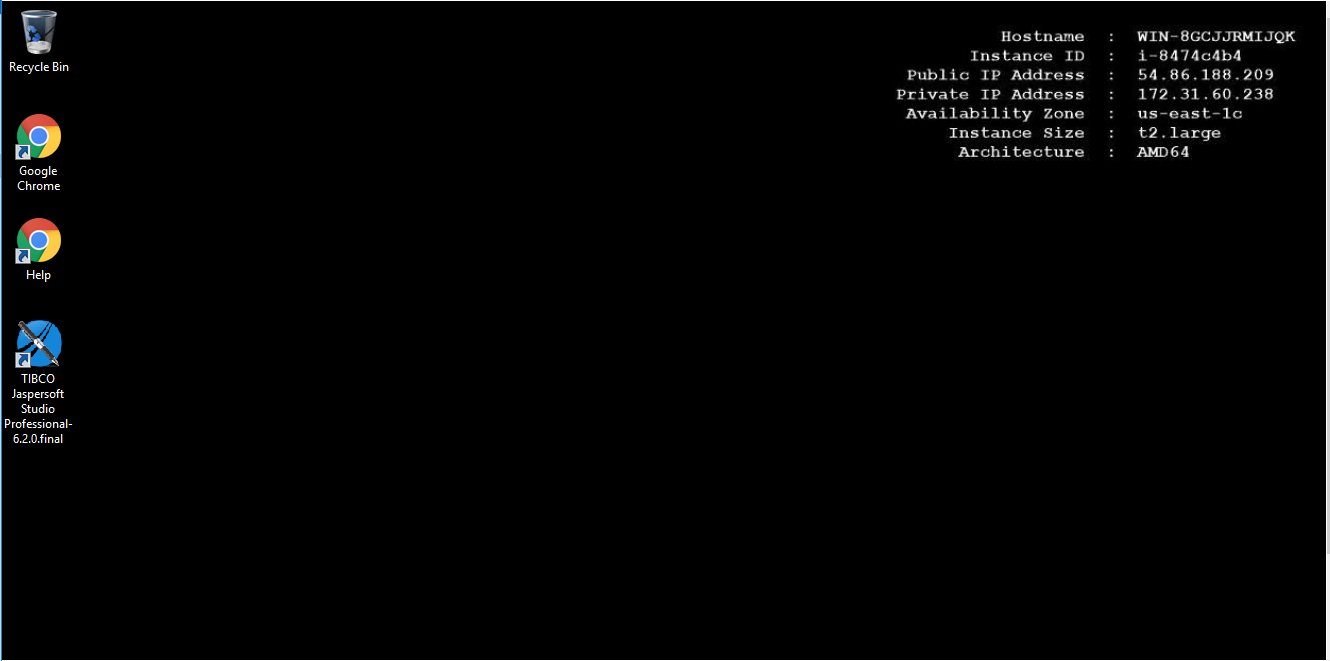
A) Click the Windows “Start” button and select “All Programs” and then point to Jaspersoft Studio Professional
B) RDP Connection: To connect to the operating system,
1) Connect to virtual machine using following RDP credentials :
- Hostname: PublicDNS / IP of machine
- Port : 3389
Username: To connect to the operating system, use RDP and the username is Administrator.
Password : Please Click here to know how to get password .
C) Other Information:
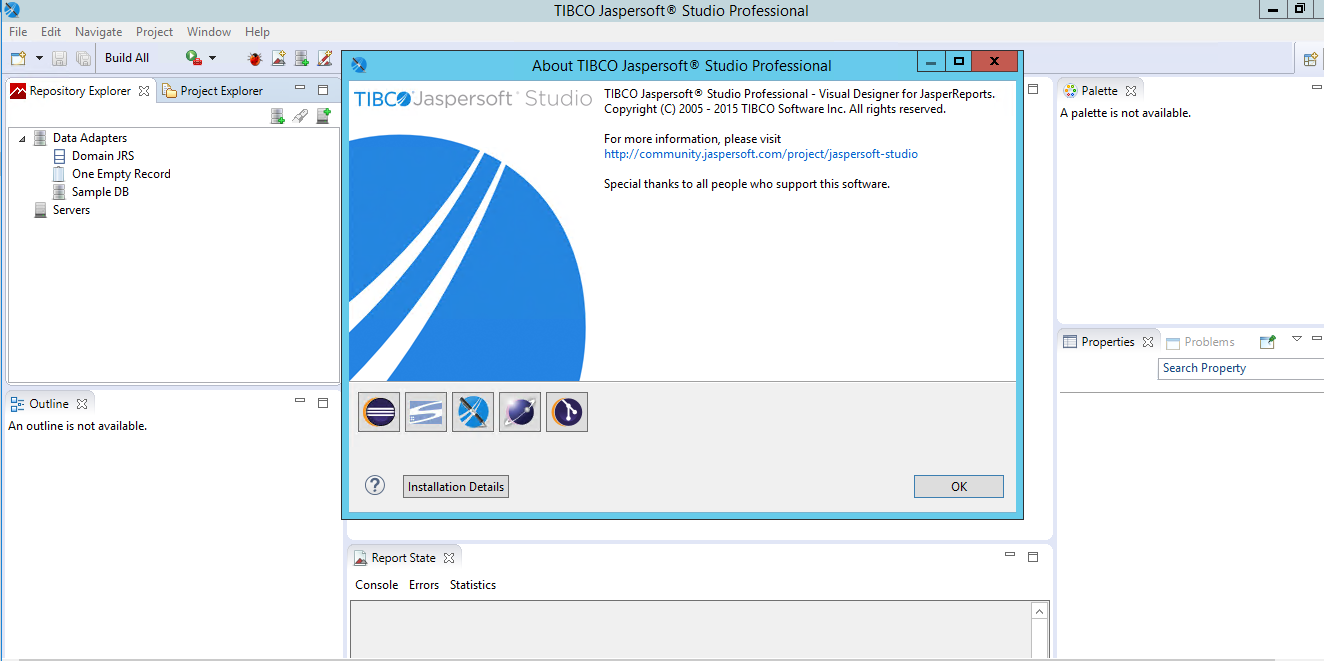
1.Default installation path: will be on your root folder “C:\Program Files\TIBCO\Jaspersoft Studio Professional-6.2.0.final”
2.Default ports:
- Windows Machines: RDP Port – 3389
- Http: 80
- Https: 443
Configure custom inbound and outbound rules using this link
Installation Step by Step Screenshots