

How to Download & Install TeamViewer
Step 1: Click on the link to download TeamViewer .
Step 2: Choose your OS and follow the steps to install Team Viewer.
Step 3: Select ‘Basic Installation’ and choose the purpose of using Team Viewer.
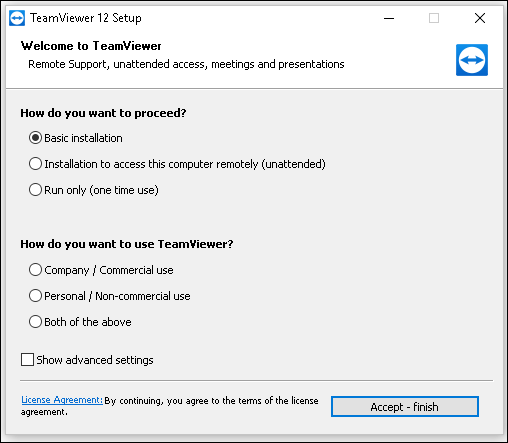
Step 4: Click on ‘Accept- finish’ button to complete the installation.
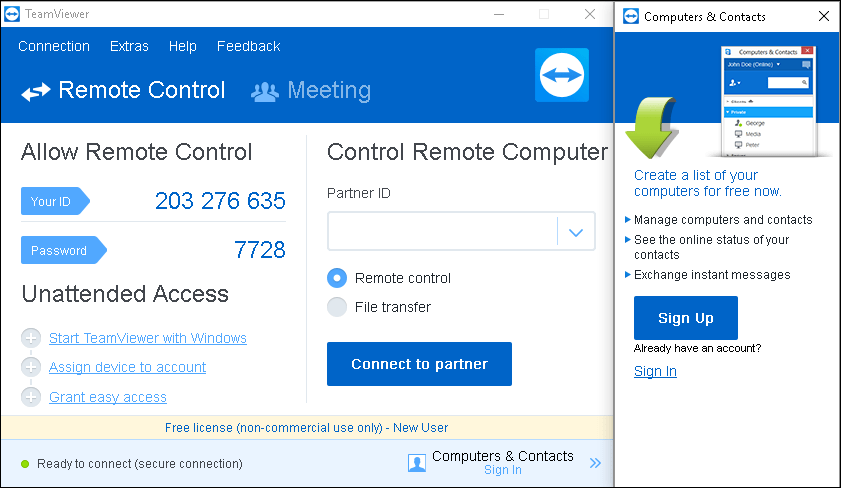
Step 5 : Once installation finishes. You will get the main TeamViewer window, as shown below.
Follow the Steps to create and share meeting ID
Step 1: Start TeamViewer.
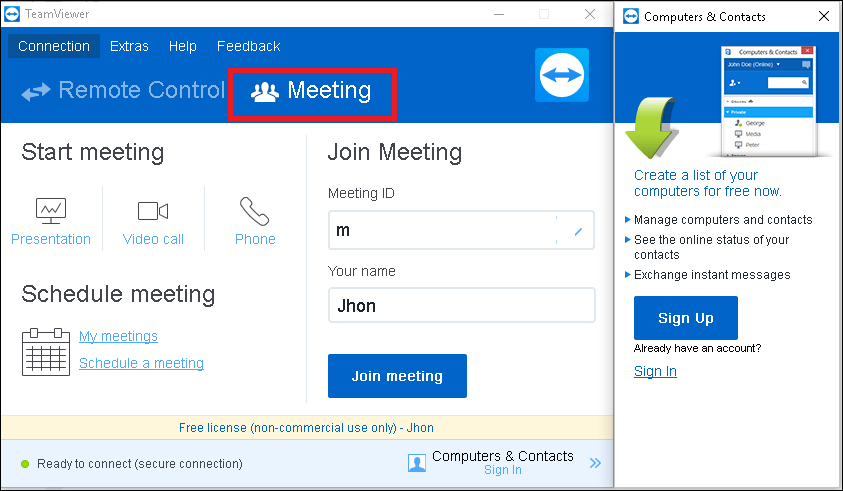
Step 2: Click the Meeting tab
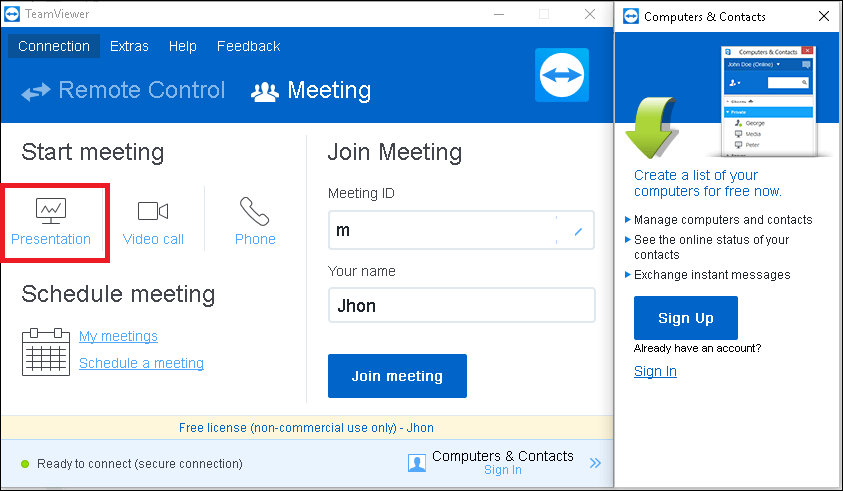
Step 3: Click on ‘Presentation’ tab.
Step 4: A new window will open with Meeting ID, please share that meeting ID with our Technical Support Person.
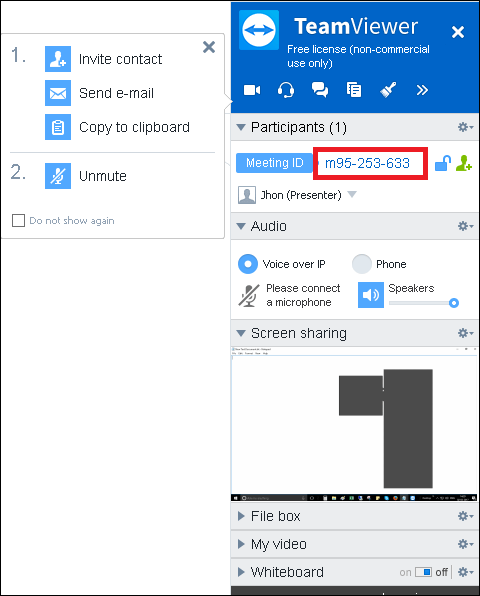
How to give access of your Mouse and Keyboard to Technical Support Person.
Step 1: Let the support person join TV session.
Step 2: Now you can grant him access of your Mouse and keyboard by clicking on the mouse pointer and uncheck it, in-order to let the partner access your system
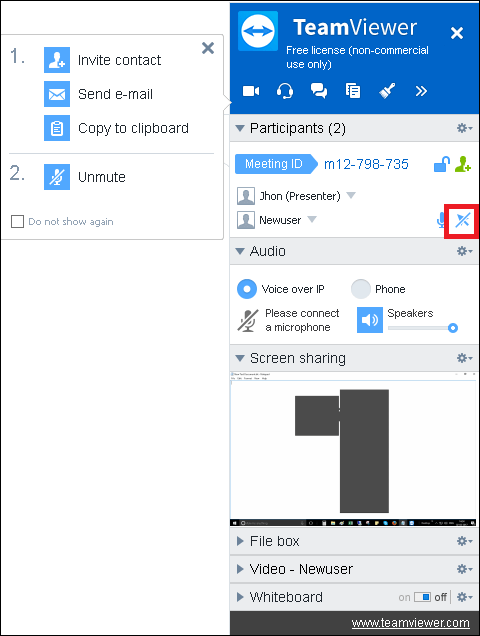
Step 3: Now Remote support can access on your computer to resolve the issue.
Grant Remote control of your computer to support using Teamviewer