

Lets take a look of how you can assign IP addresses to Azure resources to communicate with other Azure resources, your on-premises network, and the Internet.
There are two types of IP addresses you can use in Azure:
- Public IP addresses: Used for communication with the Internet, including Azure public-facing services
- Private IP addresses: Used for communication within an Azure virtual network (VNet), and your on-premises network when you use a VPN gateway or ExpressRoute circuit to extend your network to Azure.
You can associate a public IP address with a Windows or Linux VM by assigning it to its network interface. In the case of a multi-network interface VM, you can assign it to the primary network interface only. You can assign either a dynamic or a static public IP address to a VM.
Azure is changing management mode for resources and the differences
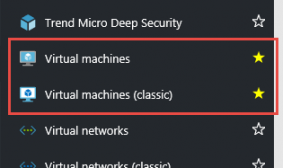
Since the new model has more control over resources, I’ve create a linux machine with the new model to do some testing. After the machine was created I opened the blade for the machine (machine create with the new model are visible only on the new portal) and I noticed that I have no DNS name setting.
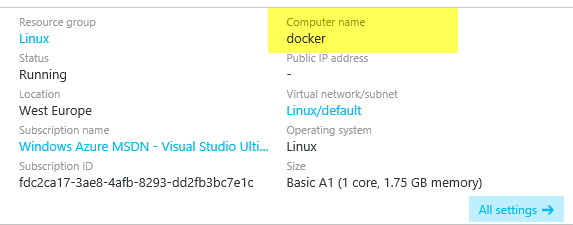
Figure 2: Summary of my new virtual machine, computer name is not a valid DNS address
Compare Figure 2 with Figure 3, that represents the summary of a VM created with the old resource management. As you can see the computer name is a valid address in domain cloudapp.net
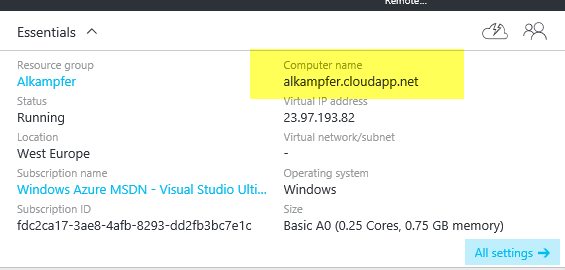
Figure 3: Summary of VM created with old resource management, it has a valid DNS name.
Since these are test VM that are off most of the time, the IP is chaning at each reboot, and I really want a stable friendly name to store my connection in Putty/MremoteNG.
From the home page of the portal, you should see the resource manager group where the machine was created into. If you open it, you can see all the resources that belongs to that group. In the list you should see your virtual machine as well as the IP Address resource (point 2 in Figure 4) that can be configured to have a DNS name label. The name is optional, so it is not automatically setup for you during machine creation, but you can specify it later.
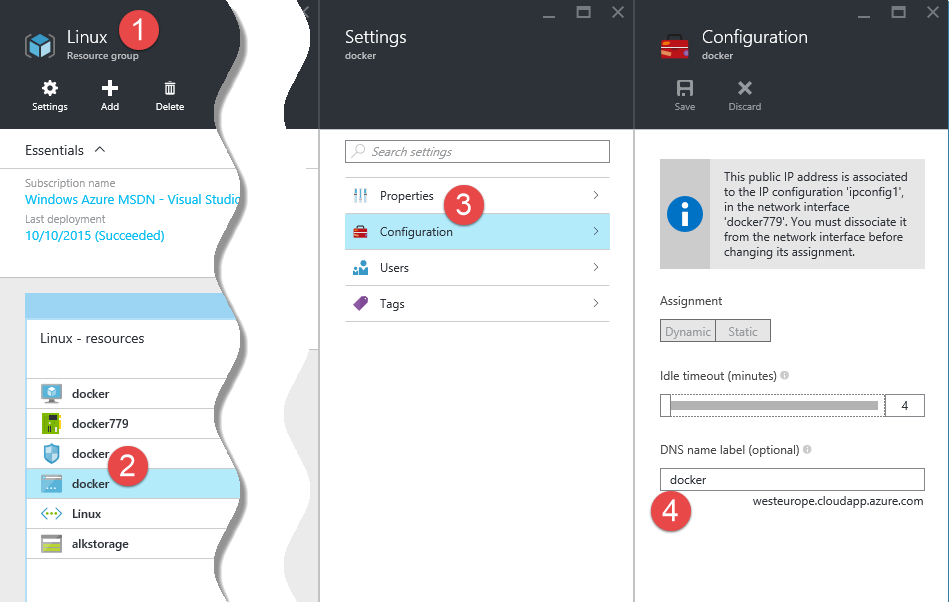
Figure 4: Managing ip addresses of network attached to the Virtual Machine
Now I set the name of my machine to docker.westeurope.cloudapp.azure.com to have a friendly DNS for my connection.
How to configure a custom domain name in Cloud Services